The short version
Preview works fine for a quick merge. PDFLite works the same way, but nothing ever leaves your device — no upload, on Mac or any other OS.
Mac already has a way to do this
macOS's built-in Preview app can merge PDFs — open the first file, show the sidebar (View → Thumbnails), drag in more pages or files. It works, but has rough edges.
Preview (built-in)
- •Free, already on every Mac
- ✕Multi-page PDFs sometimes insert as one thumbnail, not expanded
- ✕Reordering is fiddly with trackpad precision
- ✕One file at a time — no batch flow
PDFLite (browser)
- ✓Also free, works in Safari or Chrome — nothing to download
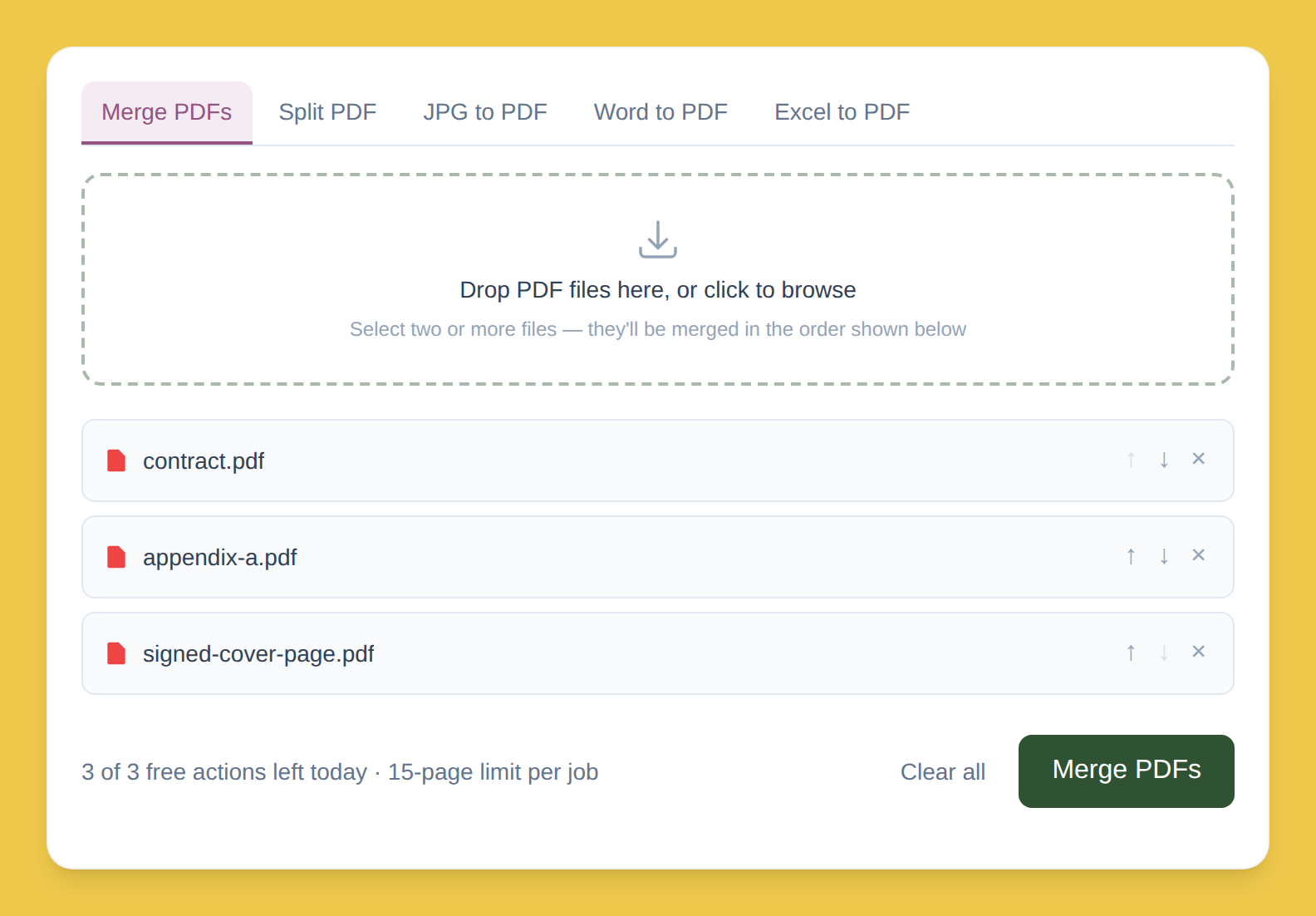
- ✓Drop several files at once, see a clear list
- ✓Reorder with simple up/down arrows
- ✓Same tool works identically on Windows or Chromebook
Which one should you use?
Occasional, two files
Already comfortable with Preview's sidebar? No reason to change habits.
Multiple sources, regularly
The browser-based route is easier to keep using consistently — same steps if you switch to Windows.
What stays on your Mac
Preview
Works locally because it's a native Mac app.
PDFLite
Works locally because the merge logic (pdf-lib) runs inside the browser tab itself. Your files don't leave your device either way.